Wall Symbols on Architectural Plans: A Visual Reading Guide
By Floor Plan Analyzer, an AxcelerateAI practice
Wall symbols on architectural plans show boundaries, but their meaning comes from more than the thickness of a line. You need the legend, type references and drawing phase to distinguish a construction assembly from a display convention.
This guide compares 10 wall-reading examples and explains how to resolve exterior walls, partitions, material hatches, rating references and glazed systems. It also works through centreline spacing and a wall-face takeoff, with assumptions shown so the result can be checked.
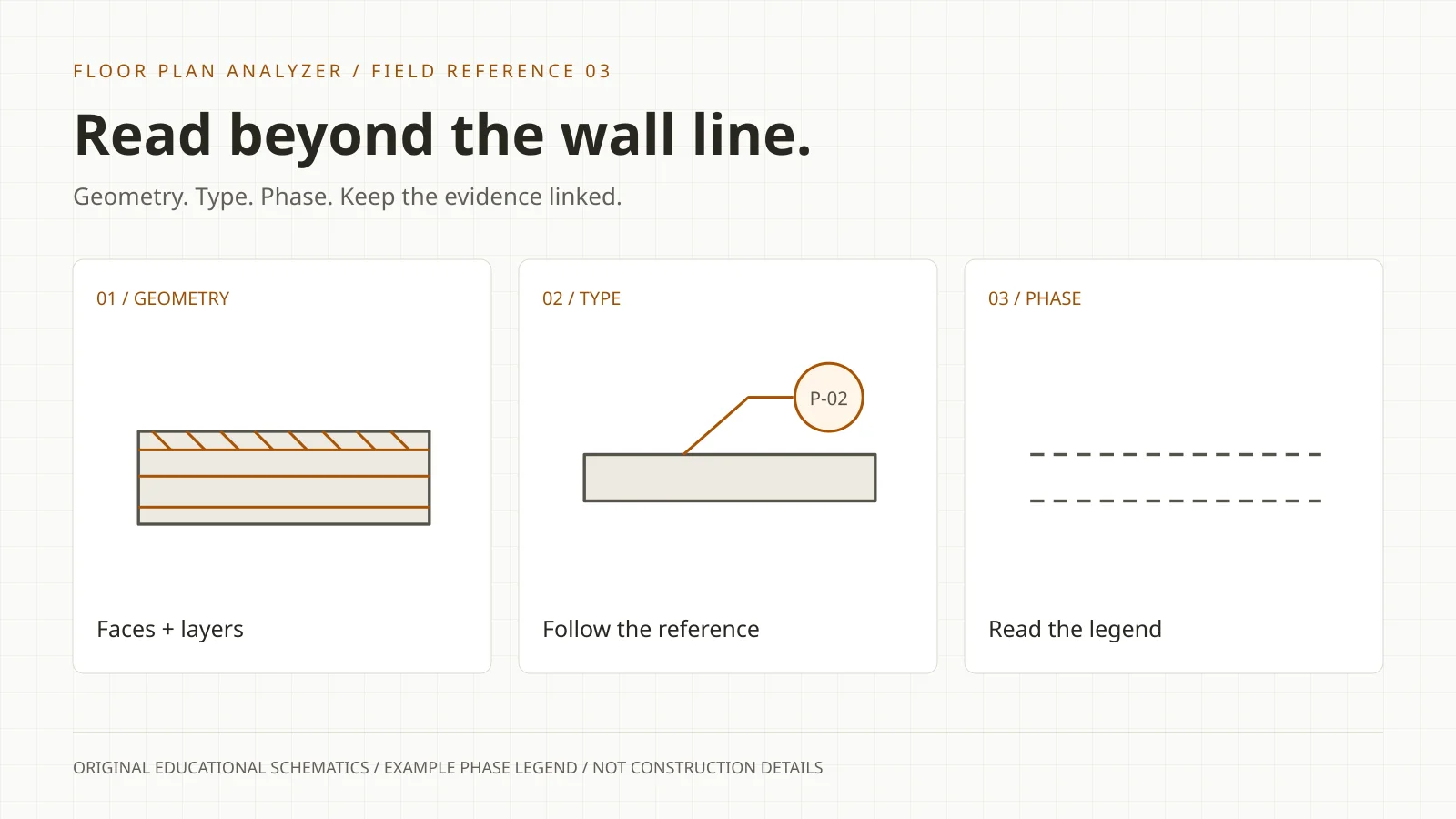
What do wall symbols on architectural plans mean?
Walls commonly appear as parallel faces or filled bands. Internal lines and hatches may show layers; type tags point to assembly definitions; phase graphics distinguish work status when the legend defines them. Lineweight alone does not establish material, structural role, height or fire-resistance rating.
- Read geometry, construction type, phase and documented performance as separate fields.
- A repeated wall tag identifies a type; it does not necessarily identify one physical run.
- Declare the measurement basis and height source before reporting wall areas.
10 wall-reading examples: types, references and phase cues
Original plan-view teaching schematics. These examples mix construction families, status conventions and annotation; they are not 10 mutually exclusive wall types or a universal CAD standard. Amber is an editorial highlight. Existing/new/demolished graphics share one invented legend. Sources supporting interpretation follow in the reading sections.
Download the 10-example wall reference (SVG, printable)

Plan view
01 / Exterior layered wall
A wide perimeter assembly can show several layers in plan. The drawing here separates an outer layer, cavity and inner layer to teach how one wall can contain multiple boundaries.
Check: Resolve the named construction from its type reference. Width alone does not establish material, loadbearing status or performance.

Plan view
02 / Interior partition
Two close faces enclose this simplified partition. The plan locates a division between spaces; the tag is needed to distinguish its actual assembly.
Check: Interior is a location/function description. Do not assume every thin interior wall is non-loadbearing or unrated.

Plan view
03 / Masonry-type hatch example
A block-like hatch fills a band between wall faces. It illustrates one possible material convention, not a universal masonry symbol.
Check: Confirm the hatch key, type and details. A texture is evidence of a drawing convention, not verification of the installed construction.

Plan view
04 / Wall with a rating reference
The P-03 tag points away from an otherwise ordinary wall outline. No special hatch in this educational example establishes a fire-resistance rating.
Check: Follow the tag to the documented assembly and specified rating. Keep missing or conflicting references unresolved.

Plan view
05 / Curtain-wall glazing run
Thin glazing lines and repeated frame divisions replace an opaque band in this example. They locate a glazed enclosure rather than specifying its system.
Check: Read the system reference and glazing elevations. The number of visible mullions does not establish assembly quantity.

Plan view
06 / Existing wall: example legend
The muted solid band represents existing construction only within the invented legend used here. Another office can use different linework.
Check: Read the phase legend and issue information before assigning existing/new status.

Plan view
07 / New wall: example legend
The strong outline and amber fill represent new construction in our example legend. Colour is an editorial aid, not a site-wide CAD rule.
Check: Compare against the project legend; a heavy line can also describe a cut element or a graphics override.

Plan view
08 / Demolished wall: example legend
Dashed wall faces denote removal in this invented legend. The band still shows where the element was; it does not belong in a new-wall quantity.
Check: A dashed line may mean something else on another view. Preserve the drawing phase and legend reference.

Plan view
09 / Low / partial-height wall
The plan mark is paired with a height note because the outline alone cannot establish how far the wall rises. The 1.20 m note is invented teaching data.
Check: Use an elevation, section or explicit height note. Do not use the storey height for every wall by default.

Plan view
10 / Wall type tag and leader
A leader connects the example type P-02 to a specific wall band. The same type can occur at several physical locations.
Check: Distinguish type identity from instance identity. Repeated P-02 tags do not automatically mean duplicate takeoff records.
Start with the legend, then separate four questions
Before reading any hatch, identify the sheet title, issue, phase and view scale. An architectural floor plan, demolition plan and wall-type detail can show related geometry while answering different questions. Read the legend for that set rather than importing the colour or dash convention from a previous job.
Then separate four observations: geometry tells you where a boundary is; construction describes its layers or type; status says whether it is existing, new or removed; performance records a documented requirement such as a rating. Treat them as separate fields. One strong-looking stroke cannot fill all four.
A useful review record is “two wall faces, 150 mm scheduled thickness, type P-02, new according to the legend; structural role unresolved.” That is more useful than “solid wall” because it says which parts were observed and which still require another source. The numbers and type in this sentence are invented to illustrate the method.
References: Autodesk: wall type properties · Autodesk: graphic display for phase filters
What the drawing can establish—and what needs another reference
Use the table as an evidence checklist. It intentionally separates visible linework from conclusions. A plan can be enough for a location task and insufficient for a procurement or construction decision.
| Question | Read first | Avoid this shortcut |
|---|---|---|
| Where does the wall run? | Plan faces, joins and openings | Counting every material line as a wall |
| What is it made from? | Type tag, assembly detail and specification | Treating one hatch as a complete specification |
| Existing, new or removed? | Phase legend, view and revision | Applying another project’s dash convention |
| Loadbearing or not? | Structural drawings and referenced design information | Inferring structure from thickness alone |
| What rating is documented? | Type/rating references and complete assembly information | Assigning a rating from lineweight |
| How high does it extend? | Section, elevation, constraints or height note | Using a full-storey height without evidence |
| How long should I measure? | Agreed face/core/centreline and endpoint rule | Mixing measurement bases at junctions |
Thick lines, thin lines and hatches are display choices
The dark band on a small plan may be a simplified cut representation. At a larger detail scale, the same assembly can expose several layers. Autodesk documents both compound-wall layers and view-specific controls for line weight, patterns, halftone and detail level. A different appearance does not, by itself, mean a different wall type.
When reviewing a scan, first distinguish the two outer wall faces from the internal layer lines. Follow those faces across a clear stretch, then inspect a corner or end where the layering is easier to understand. Do not let a dimension string, hatch stroke or cabinet outline become a third wall boundary.
For automated extraction, preserve the raw image evidence and the selected boundary pair. If the model sees five parallel strokes, the useful question is which ones bound the assembly and which belong to layers. Report unresolved pairs for review instead of choosing whichever pair produces the most convenient thickness.
References: Autodesk: compound walls and layer visibility · Autodesk: view-specific graphics overrides
Exterior walls and interior partitions describe different roles
An exterior wall encloses the building perimeter; an interior partition divides spaces inside it. Neither label fully specifies the assembly. An exterior wall can include glazing or several material layers, and an interior wall can have documented structural or performance requirements. Keep location, type and structural role distinct in your notes.
A readable wall-type reference may resolve a layered assembly even when the small plan renders it as a solid fill. Autodesk’s wall properties separate function, width, structure and identity data. Use that separation as a practical reminder: “exterior” is not a substitute for the construction definition.
If a marketing floor plan provides only a thick perimeter and thin internal lines, describe only what that source supports. It can help locate spaces. It cannot establish a buildable assembly, a safe alteration or the specification for ordering materials. Ask for the construction set when the downstream task needs those fields.
References: Autodesk: wall type properties
Concrete, masonry and stud walls: use the hatch as a clue
A hatch can help classify an area when the project legend defines it. The classification still needs to be linked to a wall type or detail for quantities that depend on layer thickness, material or construction. Our masonry example uses a deliberately simplified texture; it is not a catalogue of mandated material hatches.
Keep an observed hatch label separate from a confirmed material field. For instance, “diagonal cut hatch keyed M-1 in legend” records the visible cue. The assembly definition then resolves what M-1 actually means. If the legend crop is missing, preserve that gap rather than translating every diagonal hatch to concrete.
A drawing may suppress layers at coarse detail, while a PDF or low-resolution scan may merge narrow layers into one band. That is a resolution and representation problem, not evidence that the wall is monolithic. Compare the plan with the wall-type detail before classifying it.
References: Autodesk: compound walls and layer visibility · Autodesk: view-specific graphics overrides
Fire-rated wall symbols: a line is not a verified assembly
A wall-type or rating tag can direct the reader to the documented requirement. The ordinary plan outline does not establish that requirement, and a hatch does not verify a constructed wall. UL Solutions explains that fire-resistance ratings apply to complete assemblies and depend on the specified components and construction details.
For a drawing-reading workflow, preserve the rating text exactly as shown, the referenced type or assembly, the source sheet and whether the association is clear. This is document extraction, not a fire-safety compliance assessment. If a tag says one thing and the referenced detail says another, record the conflict for the responsible project team.
Do not manufacture a rating from an apparent board count, wall thickness or colour. Do not substitute one named assembly for another because the plan outlines look alike. In our example, P-03 is only a teaching tag; it intentionally makes no claim that the drawn band is a tested or compliant assembly.
References: UL Solutions: ratings apply to complete assemblies
Existing, new and demolished walls depend on the phase legend
The three status examples use one invented legend: muted solid for existing, a stronger filled outline for new, and dashed faces for demolished. These are teaching choices, not universal conventions. Autodesk allows the appearance of new, existing, demolished and temporary elements to be defined through phase filters and graphic overrides.
Always read status with the view and issue. A wall shown on a demolition sheet and the same wall on an existing-condition sheet represent one location viewed through different scopes. Adding both to a new-work takeoff creates a quantity error even if the geometry was traced correctly.
In a review table, keep status and issue as explicit columns. If the legend is not present, use “status unresolved” until the drawing set supplies it. Colour-only interpretation is particularly fragile on greyscale scans or monochrome prints. A workflow should still let the reviewer inspect the tag, view title and surrounding notes.
References: Autodesk: graphic display for phase filters
Curtain walls, glazed partitions and storefronts need system context
Kawneer describes curtain-wall systems as non-structural exterior-wall systems. In plan, a glazed run can appear as several thin lines with repeated frame divisions. Similar-looking linework may also appear in other glazed systems. Read the referenced elevations and system details before assigning the exact family.
Keep glazed enclosure separate from opaque-wall quantities when the scope distinguishes them. A long glazed run may be grouped by assembly, elevation tag or bay. Define that rule before turning mullion marks into a count. Doors incorporated in the run should retain their own opening records.
An internal glazed partition also divides rooms without looking like an opaque wall. For room extraction, decide whether its line is a room boundary under your workflow. For a wall material takeoff, resolve the actual system before applying an opaque-wall rate or assembly. The same geometry can serve different tasks only when the classification is explicit.
References: Kawneer: curtain wall systems
Face, core and centreline measurements are not interchangeable
A wall can be located or measured relative to its overall centreline, its core or one of its faces. Autodesk lists these as distinct wall location-line choices. A multilayer wall can have different overall and core centrelines. Read the dimension endpoints or the agreed takeoff basis rather than assuming every dimension targets the same line.
Choose the measurement basis before tracing. State whether lengths end at a junction centreline, a wall face or another scope boundary. Also state how shared walls and T-junctions are assigned so adjacent rooms do not cause the same physical wall to be counted twice.
For a simple invented parallel-wall example, two equal 0.20 m-thick walls with centrelines 4.20 m apart leave 4.00 m between their inside faces: 4.20 − 0.10 − 0.10. The arithmetic assumes symmetrical wall thickness about those centrelines. It is a teaching example, not a measured property or an area-standard definition.
References: Autodesk: wall location lines
Worked wall takeoff: gross, openings and one or both faces
Consider one invented straight partition run, 5.00 m long and 2.70 m high, with a rectangular 0.90 m × 2.10 m opening. Under a simple one-face measurement rule, its gross face area is 13.50 m² and the opening is 1.89 m². The arithmetic net face area is therefore 11.61 m².
That calculation is not automatically the bill quantity. If the chosen scope measures both faces under identical assumptions, the net becomes 23.22 m². If reveals, returns, different finish extents or a project measurement rule apply, record those separately. Do not present a software-derived net area as a universal estimating rule.
The table records the inputs and unresolved scope questions so another person can reproduce the result. Actual quantities require the correct issue, height evidence and measurement instructions. A plan-only drawing with no height can support a length measurement, but it cannot support this face-area calculation without additional information.
| Field | Value / calculation | Evidence or assumption |
|---|---|---|
| Run length | 5.00 m | Invented measured line; endpoints defined |
| Wall height | 2.70 m | Invented height note; not inferred from plan |
| Gross one-face area | 5.00 × 2.70 = 13.50 m² | Rectangular face |
| Opening area | 0.90 × 2.10 = 1.89 m² | One invented rectangular opening |
| Net one-face area | 13.50 − 1.89 = 11.61 m² | Simple full-opening deduction |
| Two identical faces | 2 × 11.61 = 23.22 m² | Only if the scope requires both |
| Reveals / returns / finish layers | Unresolved | Excluded from this simple example |
Low walls, openings and joins: avoid closing the wrong room
A partial-height wall can divide uses without creating a full-height enclosure. A dashed overhead feature can appear near a room boundary without being a wall at the relevant plan cut. Check the height note and section before treating every visible boundary as a full-height barrier.
An opening interrupts the drawn band but does not necessarily end the physical wall assembly on each side for every measurement task. Room polygons, wall lengths, finish areas and opening schedules need different treatments of that gap. Retain the opening as an explicit linked object rather than erasing it during line cleanup.
At a T-junction, preserve the junction geometry and the type on each branch. A single merged polygon can hide a type transition; three independent lines can overcount overlaps. Ask the quantity reviewer which endpoint and allocation rule the output must follow. The extraction should make that rule visible.
A practical review checklist for PDFs, scans and AI output
Use the checklist before quantities leave review. Its purpose is to preserve evidence and unresolved fields, rather than to pretend a generic symbol chart replaces the drawing set.
- Confirm sheet, issue, phase and scale for the actual view being measured.
- Read the legend and type references before classifying hatches or dashes.
- Keep physical run identity separate from a repeated type designation.
- Separate opaque walls, glazed systems and joinery where the scope requires it.
- Distinguish outer faces from internal material layers and dimension lines.
- Resolve height from a note, elevation or section before calculating face area.
- Declare face/core/centreline, endpoint, opening-deduction and junction rules.
- Preserve source positions for every length, tag and opening association.
- Flag missing type/rating references and conflicting dimensions for review.
- Compare representative output overlays with the source before downstream use.
From wall linework to data built around your workflow
A useful extraction brief specifies the fields the receiving system needs: run identity, polyline or wall faces, type, phase, height source, linked openings and review status. Preserve original coordinates and the sheet revision. A length without its measurement basis or source location is difficult to audit.
A drawing-intelligence pipeline can combine page selection, wall segmentation, OCR, geometry and tag association. Evaluation should use your representative drawings and agreed quantity definitions. A visually convincing overlay is only one check: reviewers also need to inspect missed boundaries, type transitions and unresolved fields.
Floor Plan Analyzer is AxcelerateAI’s drawing-intelligence practice. We fine-tune models on your drawings and build custom software around your fields and review process. To scope wall extraction, share a plan, its legend and wall-type detail, plus a marked example of the required output. Leave your email above to arrange that next step, or use the one-sheet analysis form when you are ready to share a drawing.
Frequently asked questions
Does a thick wall line mean the wall is loadbearing?
No. Thickness and lineweight alone do not establish structural role. Read the structural information and referenced design documents for the actual project.
What does a dashed wall mean?
Use the legend and view context. Our invented phase example uses dashed faces for demolition, but dashed graphics can represent other things on another sheet. Do not assign removal status from the dash alone.
Can I identify a fire-rated wall by its hatch?
A project-defined hatch or tag can point to a documented rating, but it does not verify a complete assembly or construction compliance. Follow the referenced assembly and preserve missing or conflicting information for review.
Are exterior walls always thicker than partitions?
Do not use relative drawn width as a universal classification rule. Assemblies, scale and display settings vary. Confirm the type and function from the project information.
Is wall length measured to the face or centreline?
It depends on the scope and dimension references. State whether the measurement uses faces, overall centreline or core references, and define junction endpoints so quantities remain consistent.
Can a floor plan give me wall area?
Only when the necessary height and scope information are also available. A plan length alone cannot establish vertical face area. Resolve height, openings, faces and deduction rules first.
Can AI read wall types and extract quantities?
A custom pipeline can combine segmentation, OCR, geometry and tag matching. Agree field definitions and evaluate representative drawings. Missing heights or unclear references must remain flagged rather than being filled with guesses.
References and illustration notes
Sources support the terminology and interpretation notes cited above. Worked examples and diagrams are our own educational material, not client drawings or measured project results.